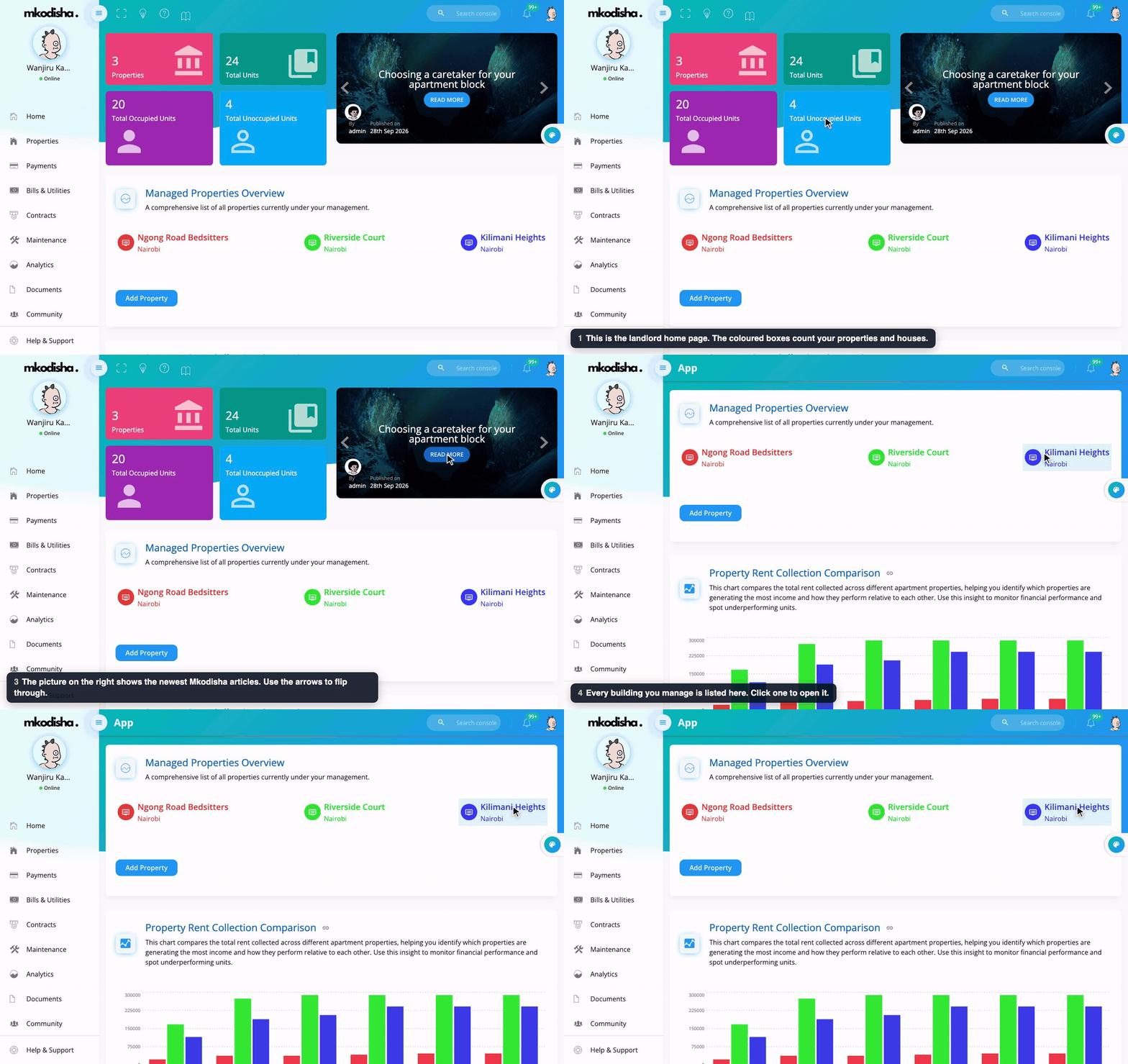
In one sentence: the menu on the left takes you everywhere, the buttons at the top help you search, read guides, switch to dark mode and change colours, and the Tutorials tab plays every Mkodisha video.
The simple version
Mkodisha has the same shape on every page:
- Left side: the menu, with every page you can visit.
- Top bar: helpful buttons: a big screen, light or dark, a picture tour, the guide for the page, search, alerts and your profile.
- Middle: the page itself, split into boxes. Every box has a title and a sentence explaining what it shows.
If you get lost, click Home in the menu.
The top bar, button by button
| Button | What it does |
|---|---|
| ☰ (three lines) | Opens or closes the menu. On a phone, this is how you open it. |
| ⛶ (square corners) | Full screen: hides the browser bars for more space. |
| 💡 (bulb) | Switches between light and dark colours. |
| ❓ (question mark) | Opens the picture tour of Mkodisha. |
| 📖 (book) | Opens the written guide for this page (like this one). |
| 🔍 Search console | Finds tenants, payments, bills and repair requests. |
| 🔔 (bell) | Your newest notifications. See Notifications. |
| Your picture | My Profile, Chat, Billing (landlords) and Log out. |
Under each page title, You are here shows where you are, and How this page works opens that page's guide.
Why Mkodisha does this better
- Every box explains itself. A sentence under each title says what it is for.
- Easy on the eyes. Dark mode, a dozen colour themes, and full-screen mode.
- Help is never far. A picture tour, a written guide for each page, videos inside the app, and a contact form.
- Share exactly what you mean. Every section has its own link.
- Works on any screen. Phone, tablet or computer, and you can add it to your phone's home screen like an app.
Change the colours and switch to dark mode
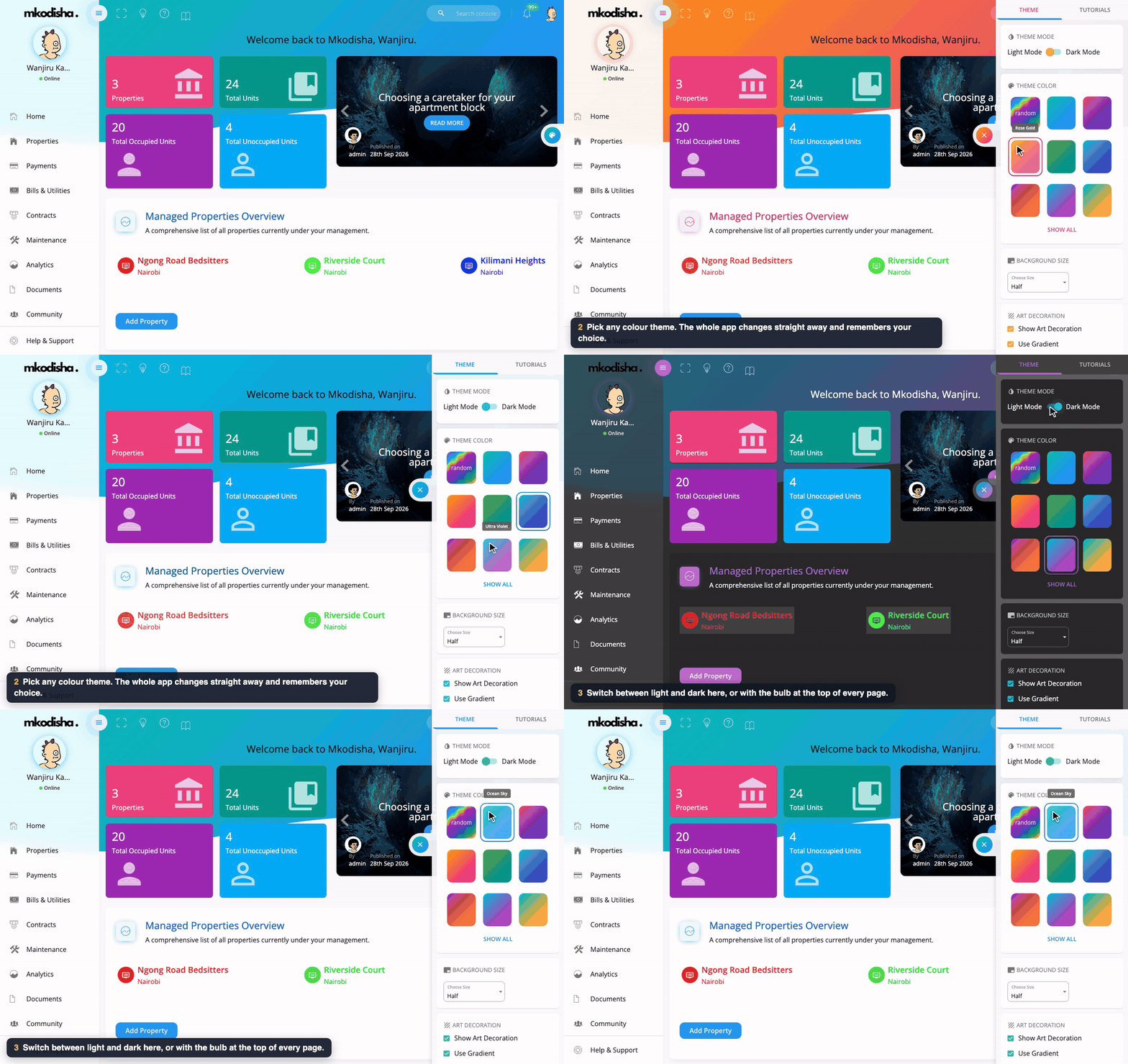
- Click the round palette button on the right edge of the screen.
- On the Theme tab: - Theme mode: switch between Light Mode and Dark Mode. - Theme color: click any colour to change the whole app straight away. Show all has more. - Background size, Show Art Decoration and Use Gradient change the header background.
- Close the panel. Your choice is remembered on this device.
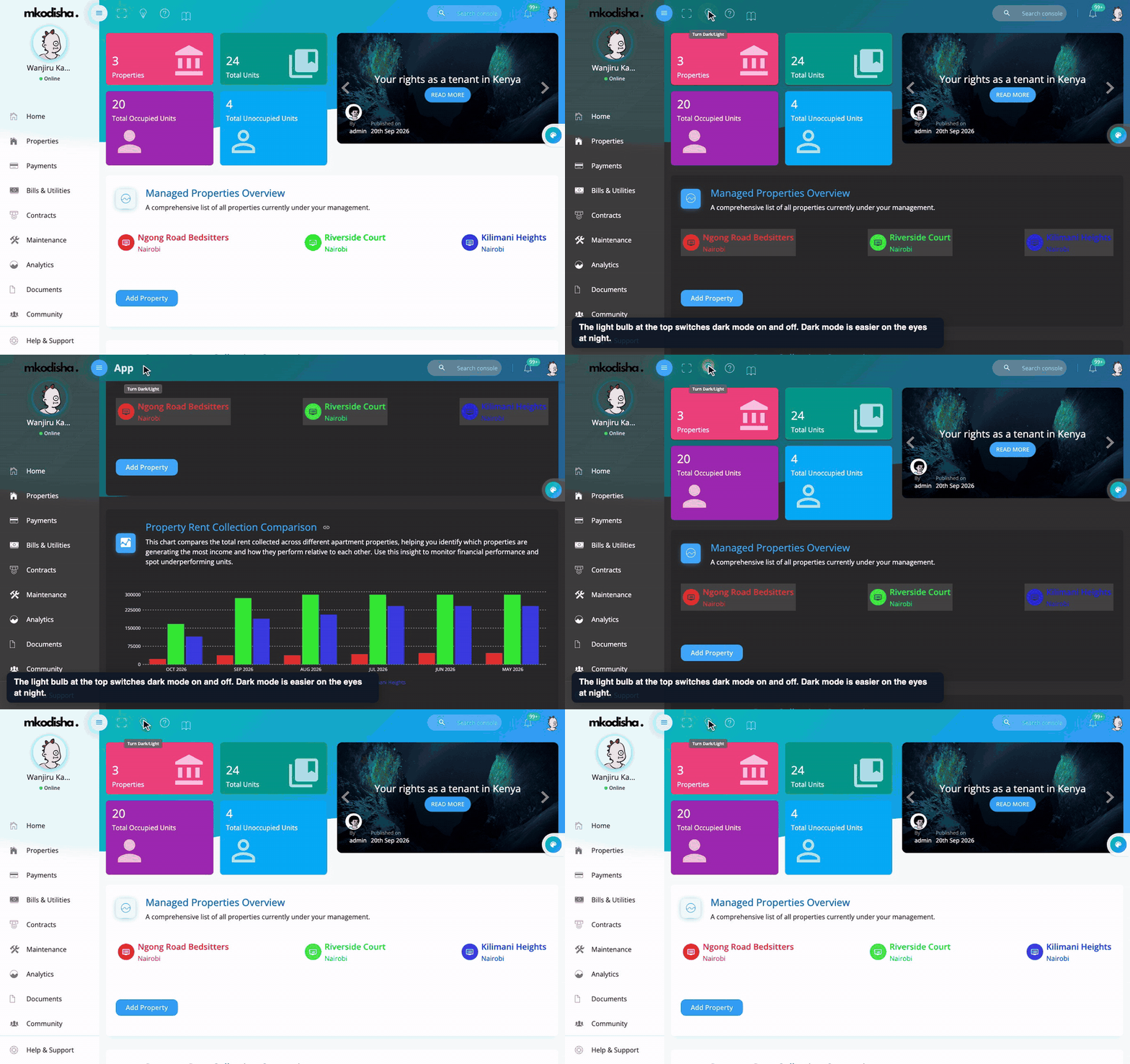
The quickest way to switch is the bulb in the top bar.
Take the picture tour
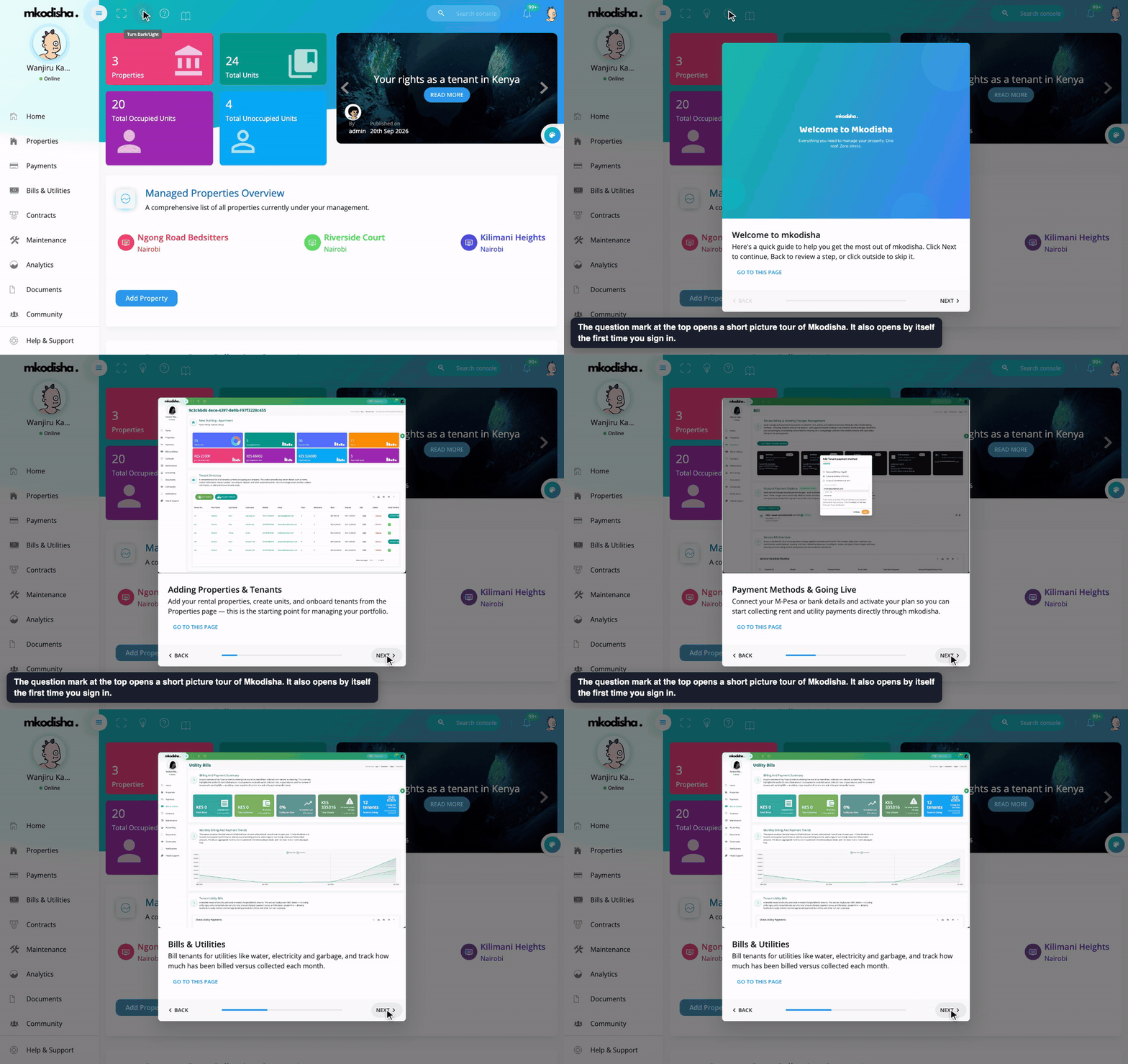
Click the question mark in the top bar for a short tour: Welcome to Mkodisha, Adding Properties & Tenants, Payment Methods & Going Live, Bills & Utilities and more. Next and Back move through it; Go to this page takes you there. It opens by itself the first time you sign in.
Search for anything
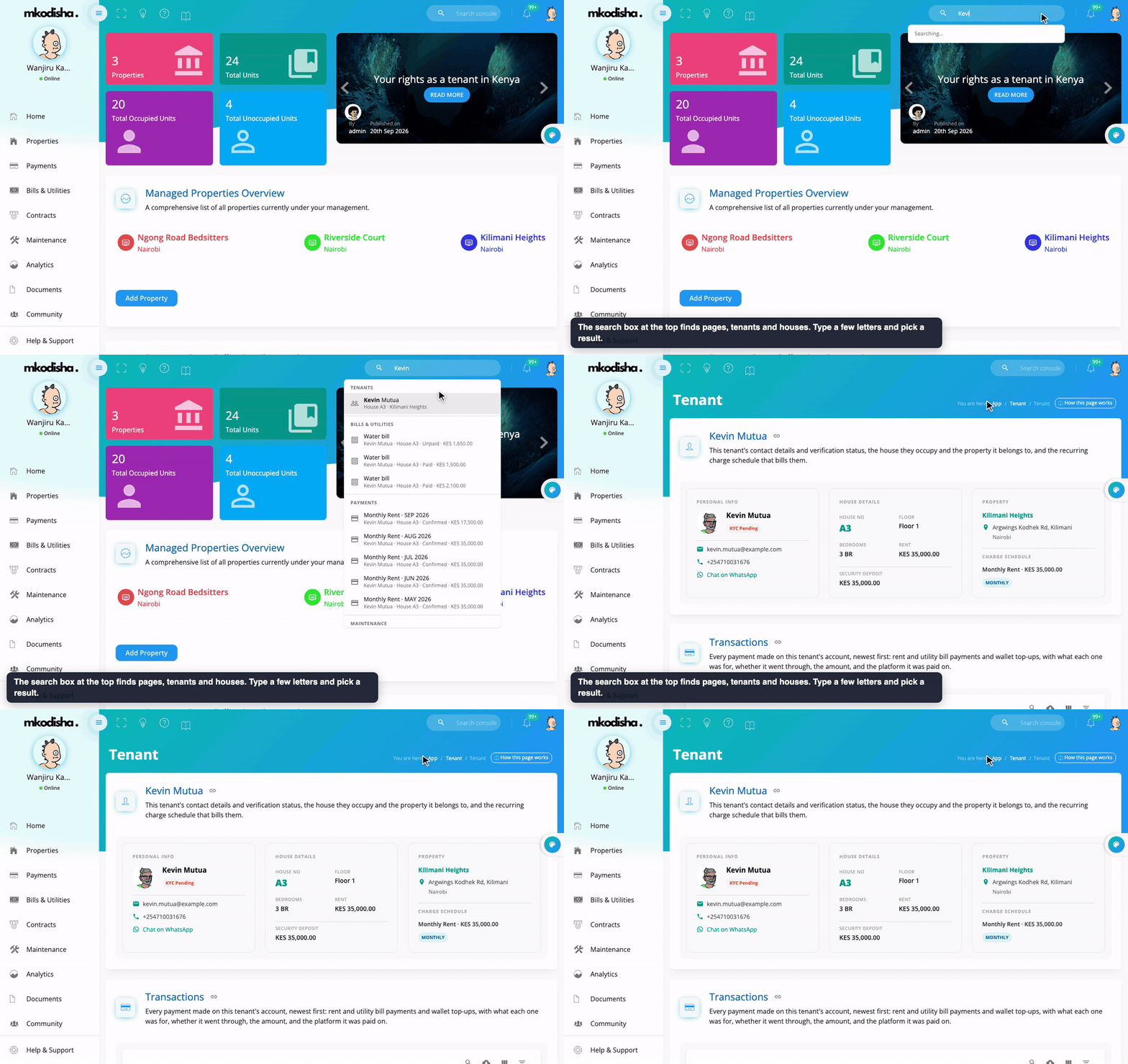
Click Search console at the top and type a few letters, like a tenant's name or a house number. Results are grouped (tenants, bills and utilities, payments, maintenance). Click one to go straight there. On a phone, tap the magnifying glass.
Copy a link to any section
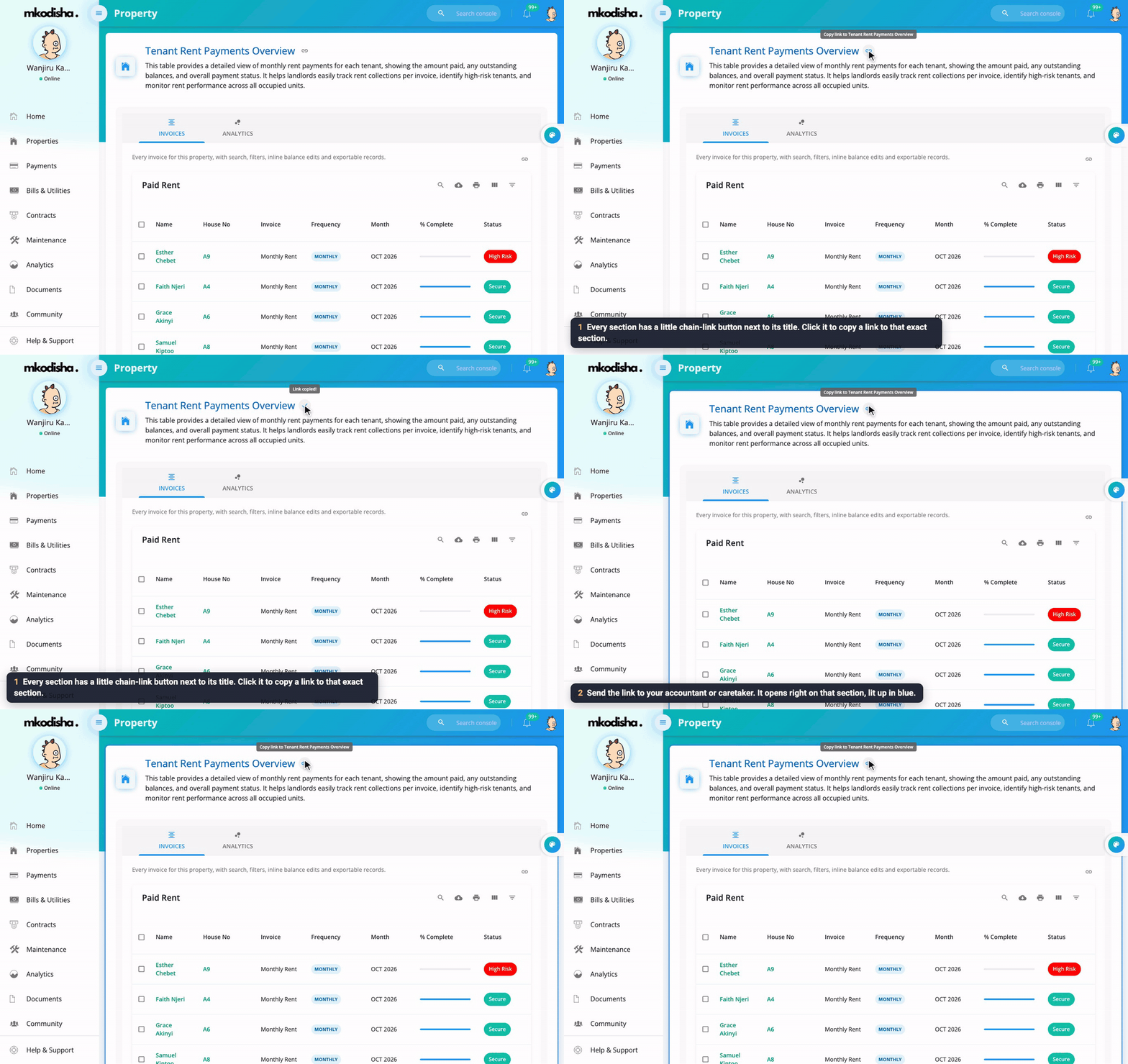
Every box has a small chain-link button next to its title. Click it to copy a link to that exact box. When someone opens the link (after signing in), Mkodisha scrolls to the box and outlines it in blue. Handy for showing your accountant a chart, or your caretaker a list.
Read the guide for any page
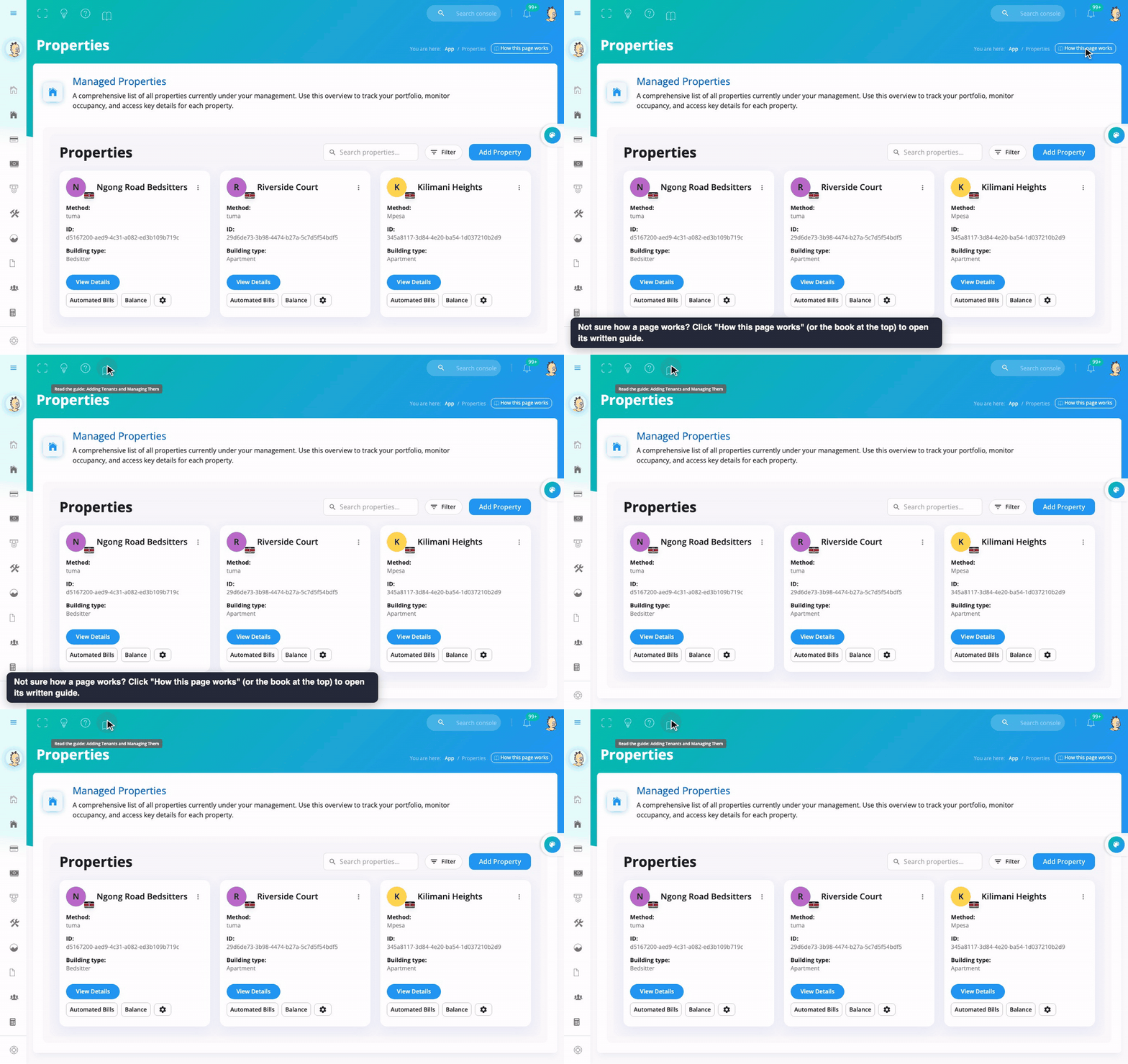
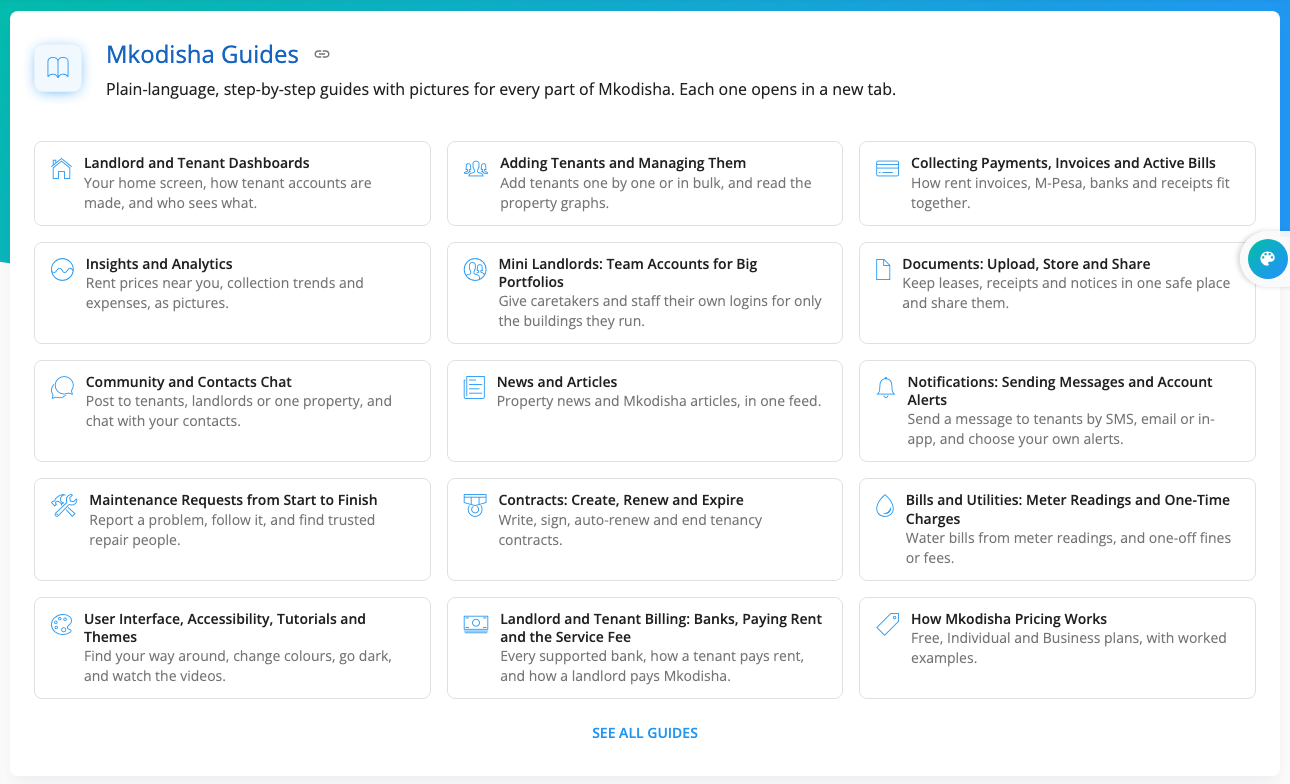
On every page with a guide, How this page works (under the page title) and the book (in the top bar) open the written guide in a new tab. Help & Support lists all of them:
Watch the video tutorials
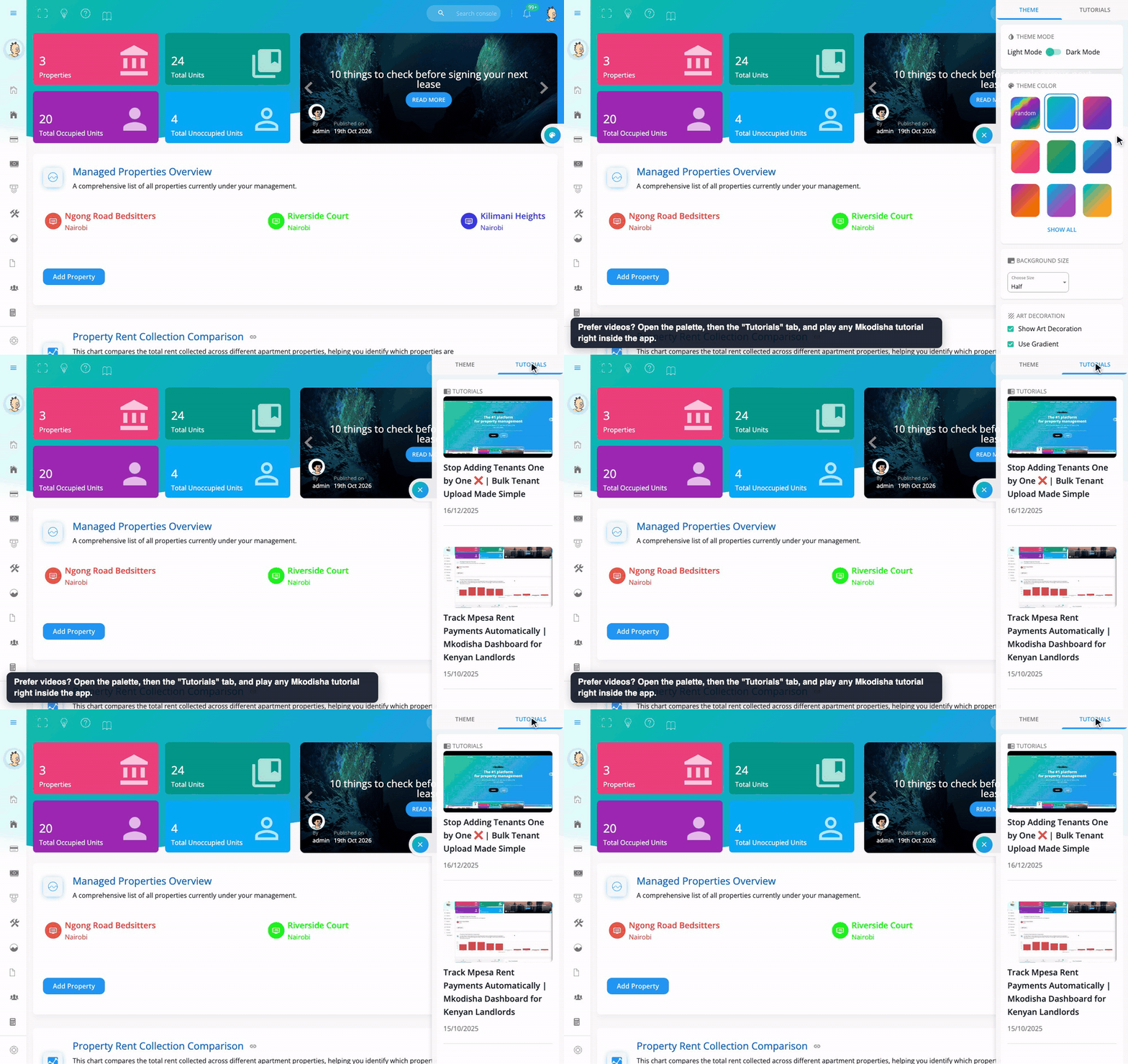
Open the palette button and choose the Tutorials tab to watch every Mkodisha video inside the app.
On your phone
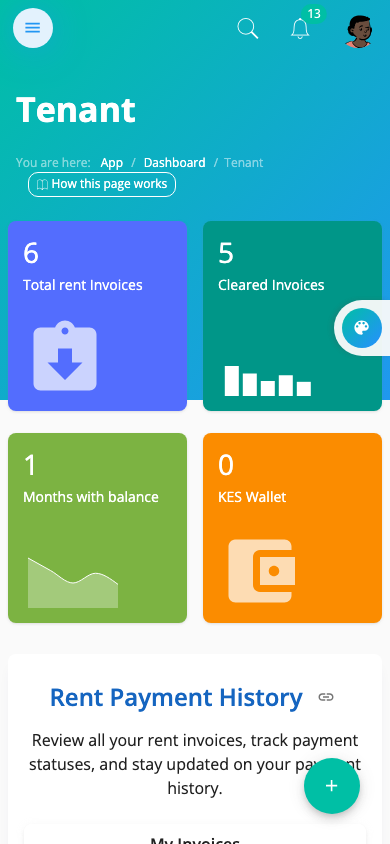
| Tenant home on a phone | Pay Rent on a phone |
|---|---|
 |
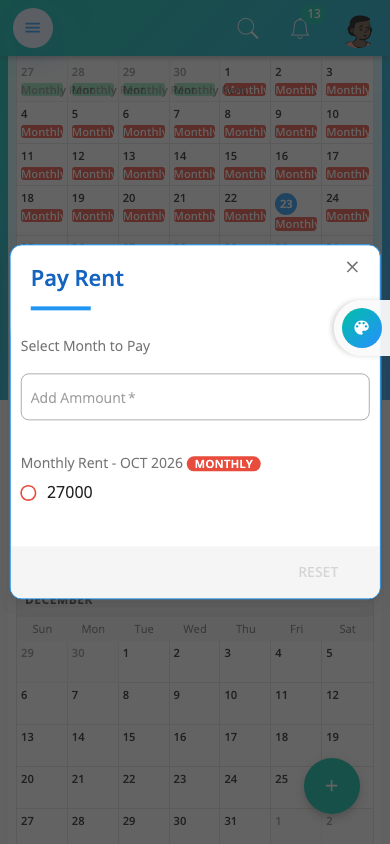 |
Mkodisha fits any screen. To use it like an app, open mkodisha.com in your phone's browser and choose Add to Home Screen (on iPhone: the Share button, then Add to Home Screen). It then opens from its own icon, and can send pop-up notifications.
Accessibility tips
- Make everything bigger: zoom your browser (Ctrl and + on Windows, ⌘ and + on Mac, or pinch on a phone). Mkodisha re-arranges itself to fit.
- Easier on tired eyes: switch on dark mode with the bulb, or pick a high-contrast theme colour.
- Less clutter: use full screen, and close the menu with ☰.
- Keyboard: press Esc to close a window or panel.
- Screen readers and assistants: every guide is available as plain text. Add
.mdto a guide's short link, for examplearticles.mkodisha.com/guides/dashboards.md. - Moving pictures: every step in these guides is shown with a pointer and a large caption, so you can follow without reading the whole page.
Keep your account safe
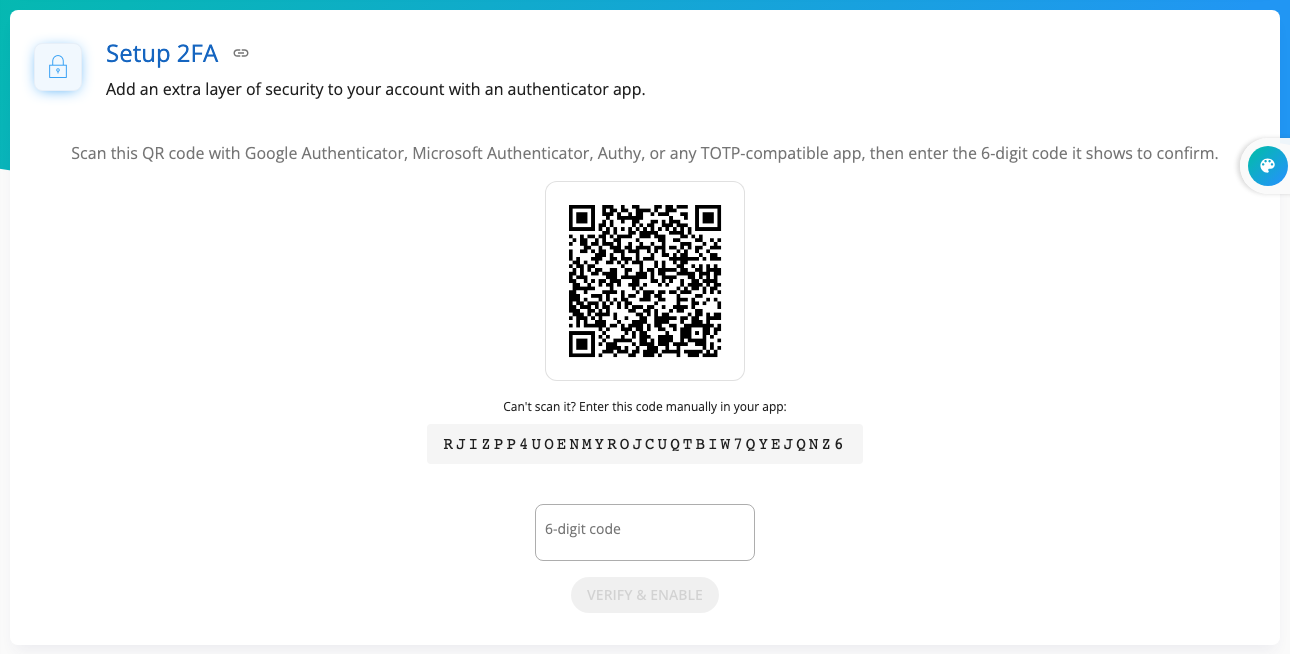
- Two-factor authentication (2FA): open My Profile; under Setup 2FA, scan the code with an authenticator app (like Google Authenticator), type the 6-digit code, and click Verify & Enable. After that, signing in needs your password and a code from your phone.
- Forgot your password? Click Forgot password on the login page, and Mkodisha emails you a reset link.
- Tenants: change the default password from your welcome email as soon as you first sign in.
Getting help
Open Help & Support at the bottom of the menu for the guides, answers to common questions, and a Contact Us form to reach the Mkodisha team.
Quick answers
How do I turn on dark mode? Click the bulb at the top of the page.
The menu has disappeared. Click the three lines (☰) at the top left.
Where are the video tutorials? The palette button on the right edge → Tutorials tab. They're also listed above.
Where are these guides inside Mkodisha? The How this page works link at the top of each page, the book in the top bar, and the Mkodisha Guides list on the Help & Support page.
How do I make the text bigger? Zoom your browser (Ctrl/⌘ and +), or pinch on a phone.
Can I install Mkodisha on my phone? Yes. Open it in your phone's browser and choose Add to Home Screen.
Words to know
| Word | Meaning |
|---|---|
| Menu (sidebar) | The list of pages on the left |
| Theme | The app's colours |
| Dark mode | Light text on a dark background |
| Deep link | A link that opens one exact section of a page |
| 2FA | Two-factor authentication: a code from your phone as well as your password |