In one sentence: Mkodisha tells you automatically when something important happens, lets landlords message a whole building in seconds, and lets everyone choose SMS, WhatsApp, email or phone pop-ups.
The simple version
There are two kinds of notifications:
- Automatic ones. Mkodisha sends these by itself: "Your October rent is due", "We received your payment", "A tenant reported a leaking tap".
- Messages you send. A landlord can write one message, like "Water will be off on Saturday", and send it to every tenant in a building by SMS, email or in-app message.
The bell at the top of every page shows your newest notifications.
Why Mkodisha does this better
- Reminders send themselves. Tenants are told when rent is due and get a receipt when they pay, without you lifting a finger.
- One message, the whole building. Pick a building, choose All recipients, write once, send.
- Every tenant sees their own name. Put
{{first_name}}in the message and Wanjiku reads "Hello Wanjiku", Brian reads "Hello Brian". - Ready-made messages. Start from a rent reminder, water interruption or maintenance template, or from your own saved drafts.
- Choose the channel. SMS for urgent things, email for long notices, in-app for everyday updates.
- A record of everything. Every message you send is listed with its date, channel and recipients, and Your Outreach counts how many went out and how many people they reached.
- People choose how they hear from you. Each person can switch SMS, WhatsApp, email and phone pop-ups on or off.
Where to find it
| What | Link |
|---|---|
| Notifications page (send messages) | mkodisha.com/app/pages/notifications |
| Manually sent notifications | mkodisha.com/app/pages/notifications#manually-sent-notifications |
| Your notification preferences | mkodisha.com/app/pages/user-profile → Edit Profile |
| The bell | Top right of every page |
The notifications Mkodisha sends by itself
| When | Who gets it | Example |
|---|---|---|
| A rent invoice is created | Tenant | "Your rent payment for OCT 2026 is due. Use the Transaction ID AB12CD3 as the reference for your payments." |
| Part of the rent is paid | Tenant | "Your partial Monthly Rent payment for OCT 2026 has been received. Pending balance: 27,000 KSH." |
| Rent is fully paid | Tenant | "Your Monthly Rent payment for the month of OCT 2026 has been fully received. Thank you." |
| A utility bill is created or paid | Tenant | An email with the bill, or the receipt |
| A tenant is added | Tenant | Welcome and verification emails with their login. See Dashboards |
| A repair request is raised or updated | Landlord / tenant | See Maintenance |
| Your Mkodisha service fee invoice is ready | Landlord | An email on the 1st of the month. See Billing |
Step 1: Send a message to your tenants
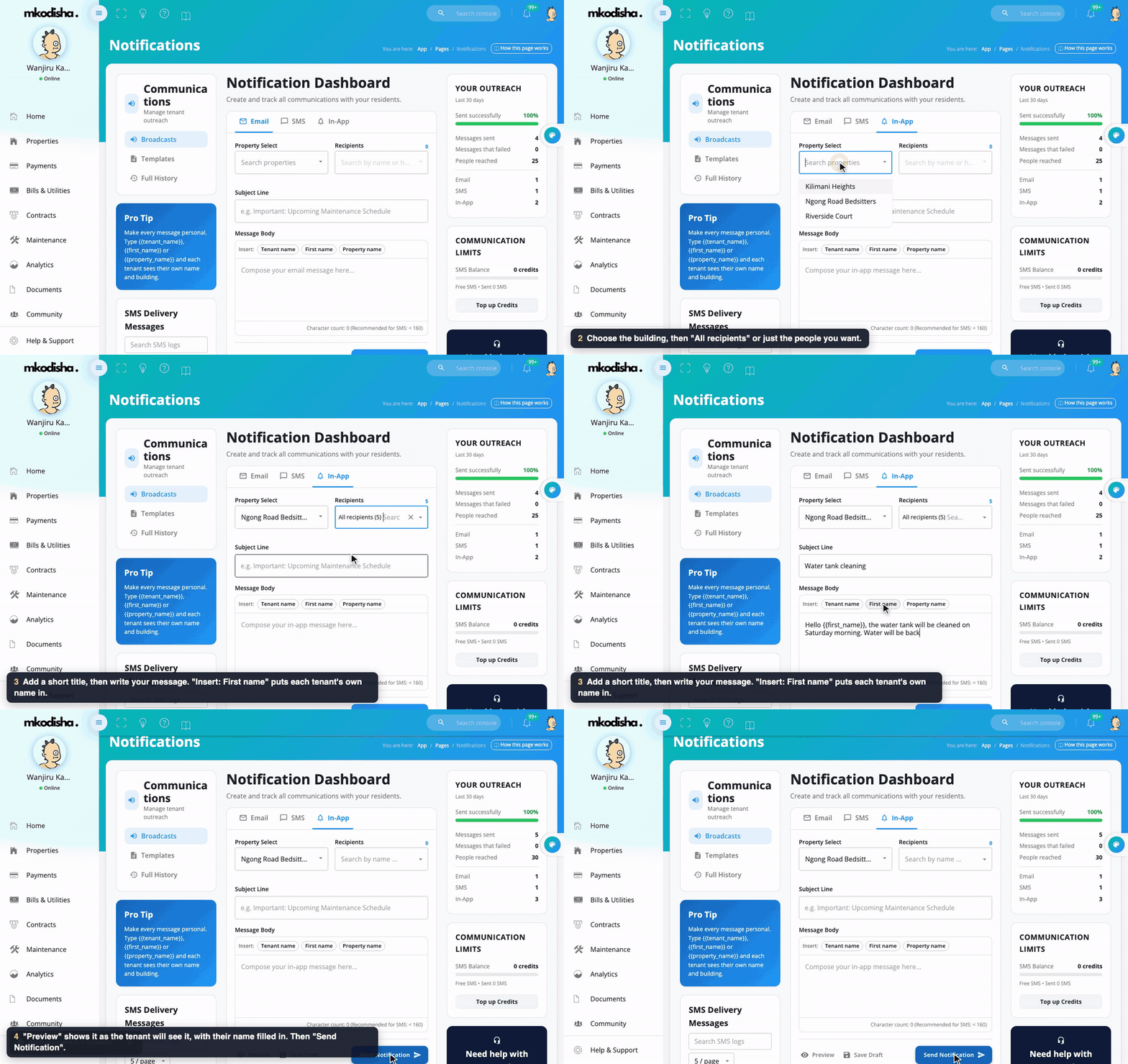
- Open Notifications in the menu.
- Choose the channel: Email, SMS or In-App.
- In Property Select, choose the building.
- In Recipients, choose All recipients or pick individual tenants. The number next to Recipients shows how many will get it.
- For Email and In-App, type a Subject Line (a short title).
- Write your message in Message Body. For SMS, keep it under 160 characters (the counter shows how many you've used).
- To make it personal, click one of the Insert buttons above the message box: Tenant name, First name or Property name (see below).
- Click Preview to see it exactly as the first tenant will, Save Draft to keep it for later, or Send Notification.
When it has gone, a green message says Notification sent to 6 recipients.
Make every message personal
Three special words are swapped for each tenant's own details just before sending:
| Type this | Each tenant sees | Example |
|---|---|---|
{{tenant_name}} |
Their full name | Cynthia Moraa |
{{first_name}} |
Their first name | Cynthia |
{{property_name}} |
The building's name | Ngong Road Bedsitters |
So one message, "Hello {{first_name}}, water at {{property_name}} will be off on Saturday", reaches Cynthia as "Hello Cynthia, water at Ngong Road Bedsitters will be off on Saturday" and David as "Hello David, …". It works for SMS, email and in-app messages, in the subject line too.
Preview
Preview shows the subject and message with the special words already filled in for the first tenant you picked, plus the channel, how many people will get it, and (for SMS) how many characters it uses. Over 160 characters, it warns you that it will cost more than one SMS.
Templates and drafts
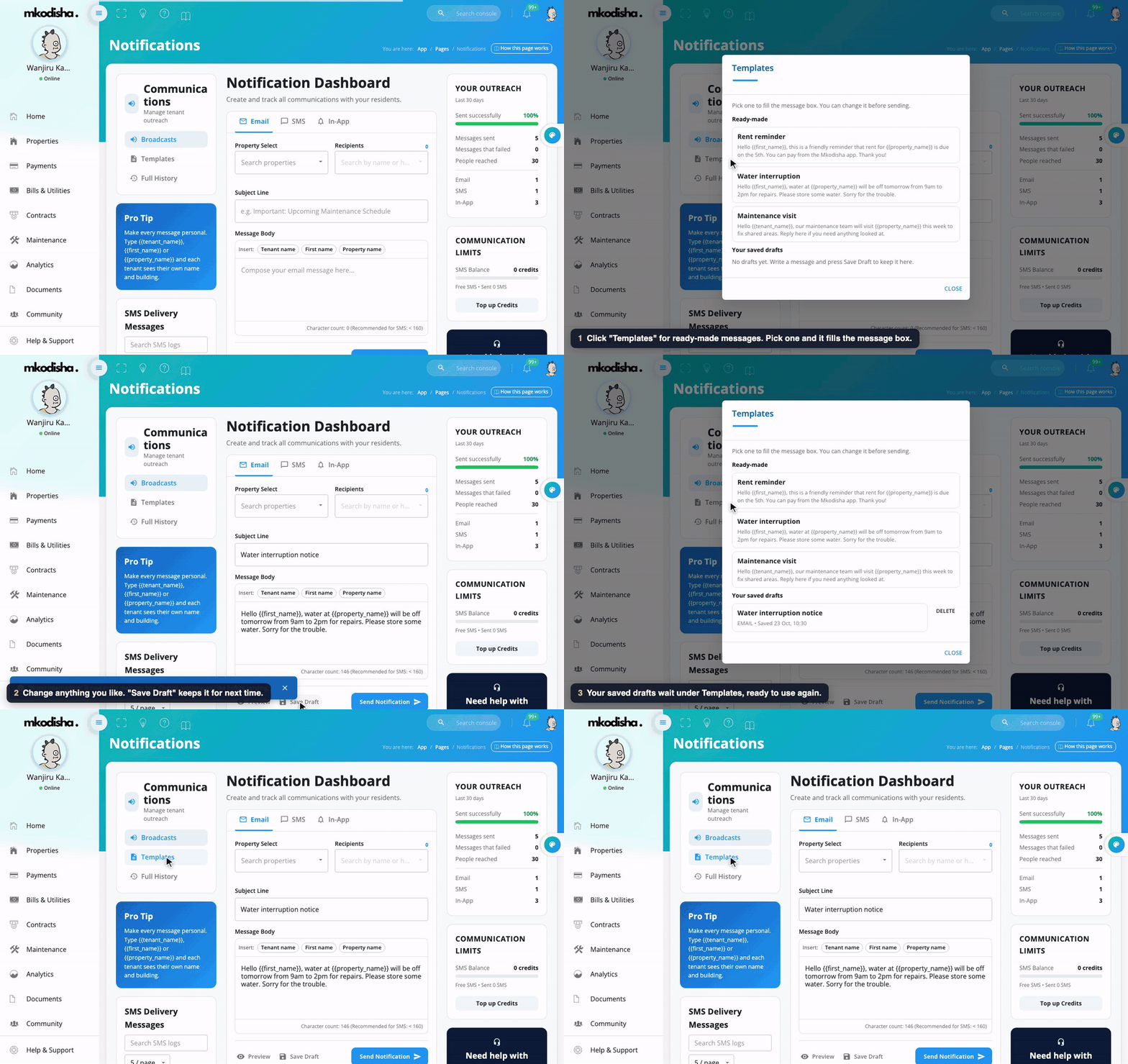
Click Templates on the left to open ready-made messages:
- Rent reminder
- Water interruption
- Maintenance visit
Click one and it fills the subject and message for you; change anything before sending.
Save Draft keeps the message you are writing. Your last 10 drafts appear under Your saved drafts in the same Templates window. Click a draft to put it back in the message box, or Delete to remove it. Drafts are kept in this browser, so they won't appear on another phone or computer.
Step 2: SMS credits
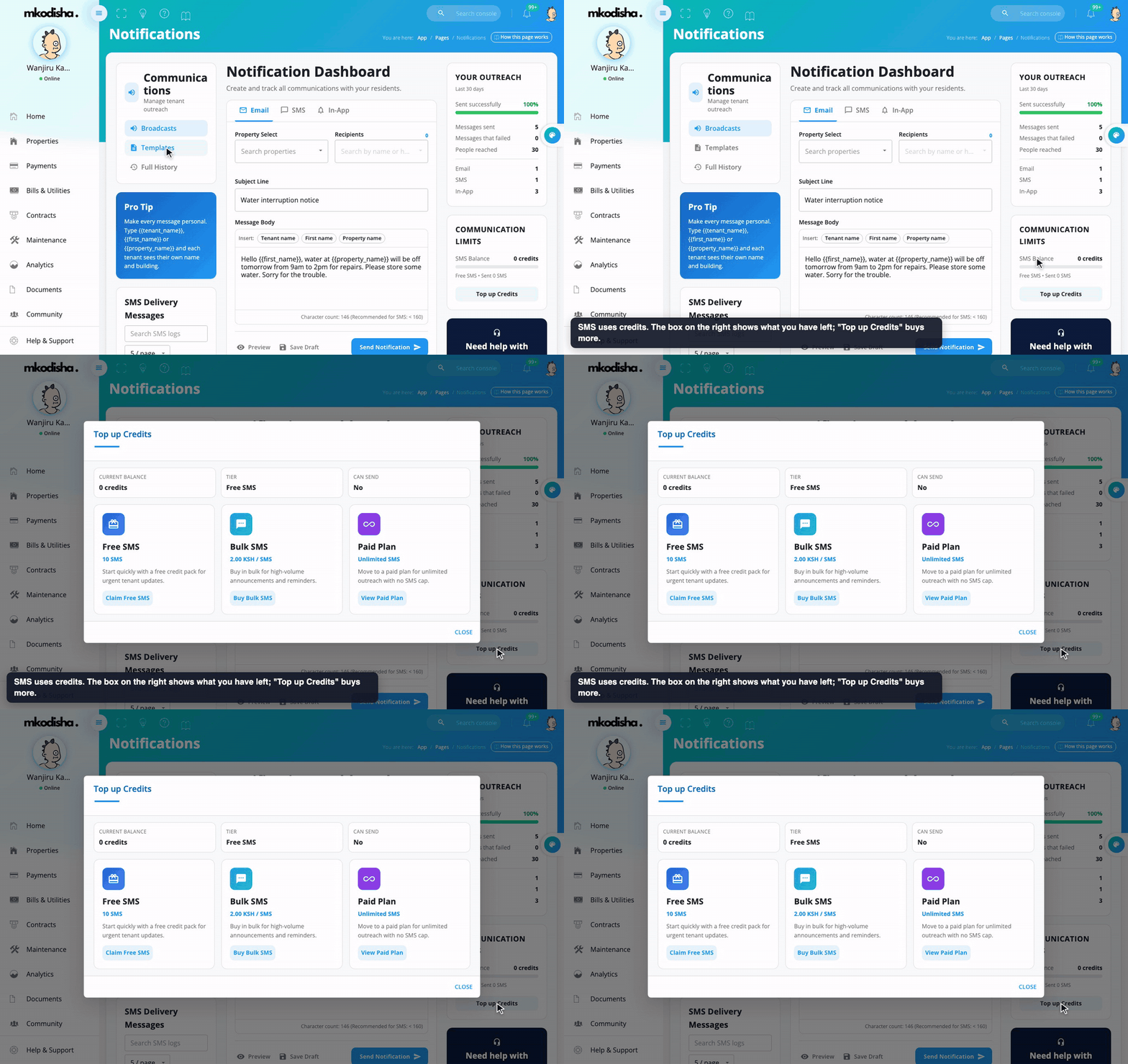
SMS costs money to send, so Mkodisha keeps an SMS balance (on the right, under Communication Limits):
- Landlords on a paid plan (Individual or Business, paid up this month) can send unlimited SMS.
- On the Free plan, you get 10 free SMS. After that, buy more with Top up Credits at KES 2 per SMS, paid by M-Pesa or card.
Email and in-app messages are free and unlimited. See Pricing.
Step 3: See what you have sent
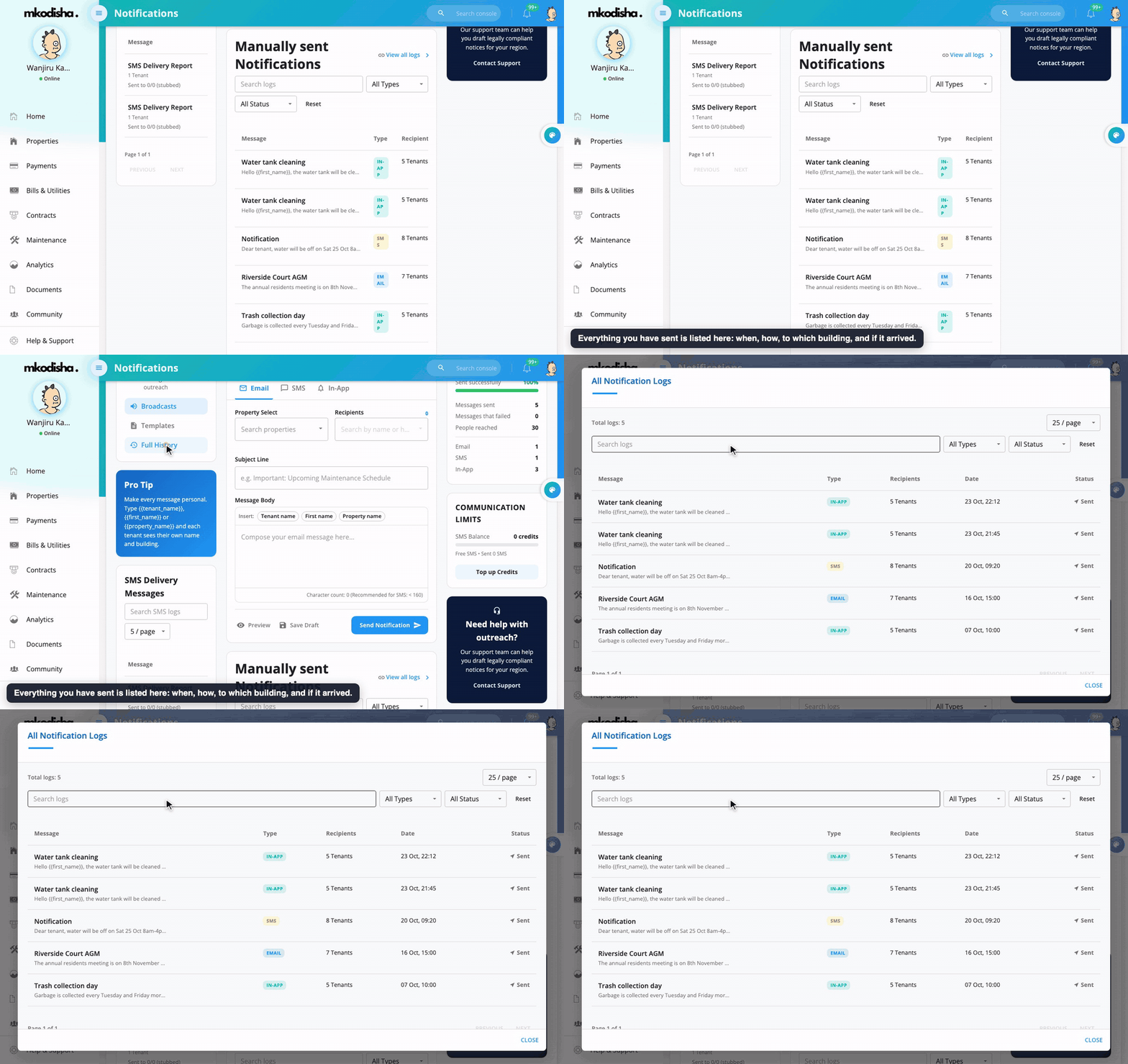
Manually sent Notifications lists every message you have sent: the message, its type (SMS, email or in-app), the recipients, the status and when. Search it, filter by type or status, or open View all logs (also under Full History on the left). SMS Delivery Messages on the left shows the delivery reports for SMS.
Your Outreach
On the right, Your Outreach counts what you sent in the last 30 days, straight from Mkodisha's records:
- Sent successfully: the share of your messages that went out without an error.
- Messages sent and Messages that failed.
- People reached: how many tenants your messages went to.
- How many went by Email, SMS and In-App.
It updates as soon as you send a new message.
Step 4: The bell
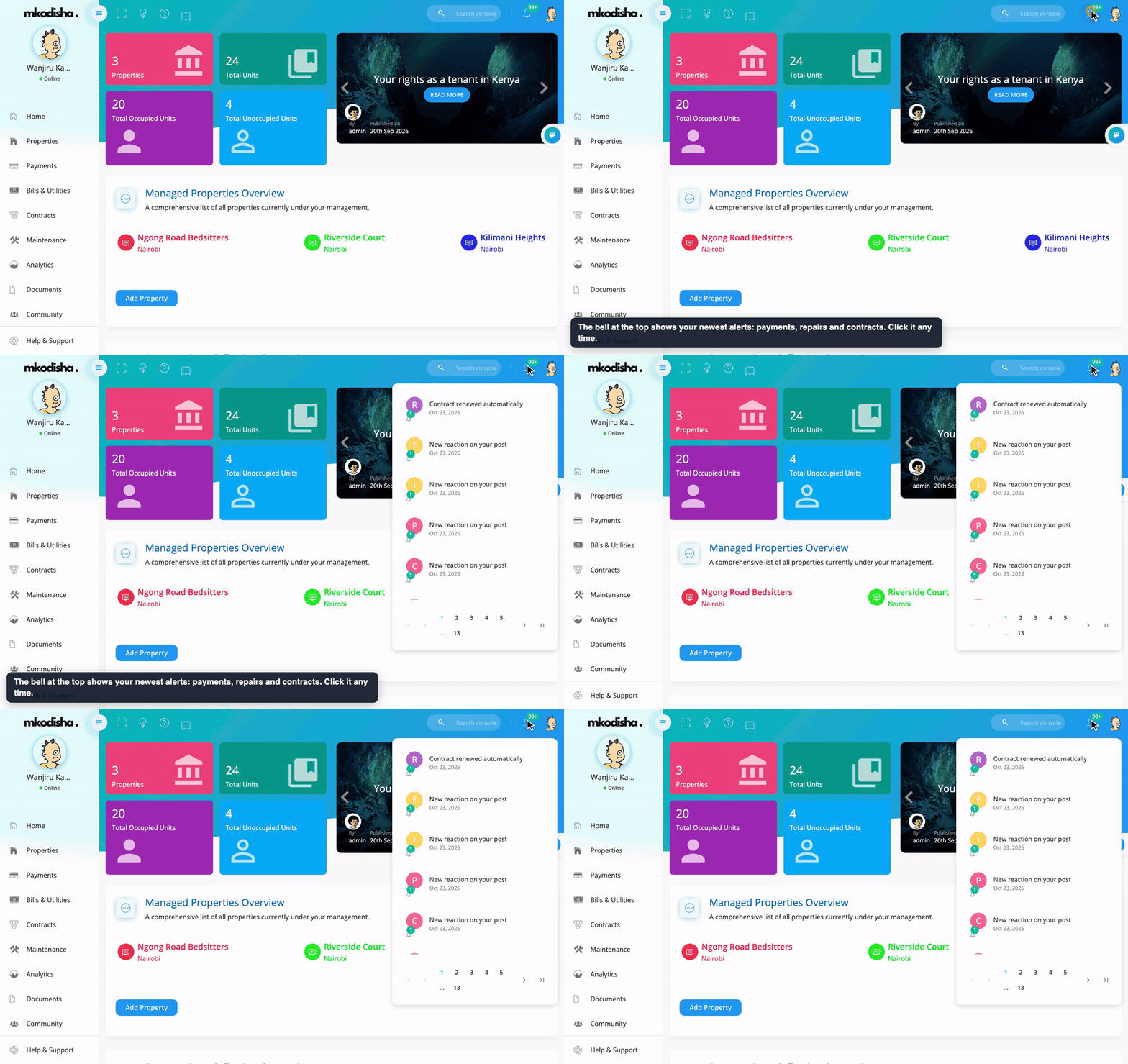
The bell at the top right shows a number when you have unread notifications. Click it to see the newest ones. Landlords also have an Unread Notifications tab on their home page, and numbers next to menu items (for example Maintenance 1) show new things in that section.
Step 5: Choose how you are contacted
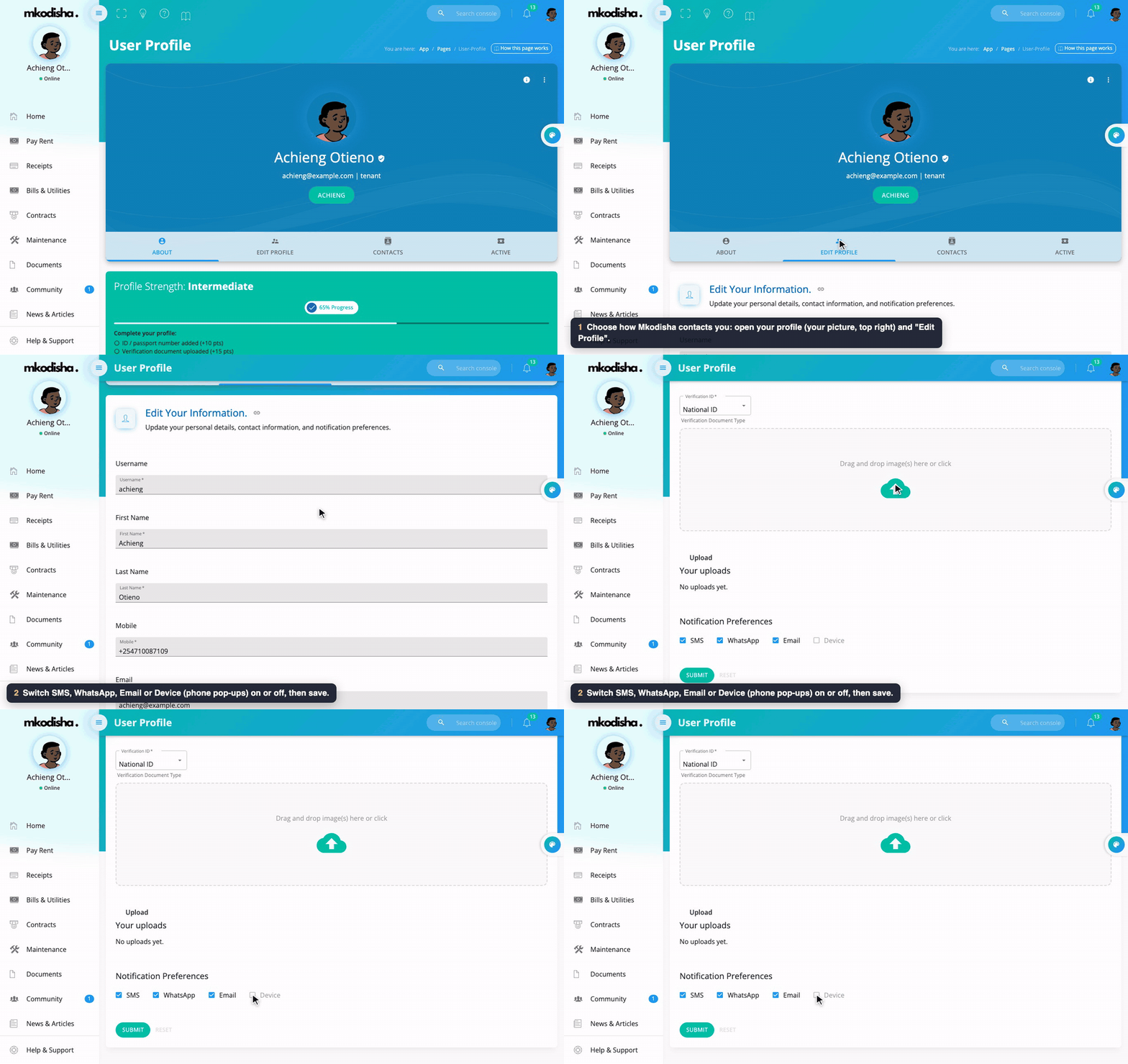
Everyone, landlord or tenant, can choose how Mkodisha reaches them:
- Click your picture at the top right → My Profile, then the Edit Profile tab.
- Under Notification Preferences, switch each one on or off: - SMS: text messages to your phone. - WhatsApp: messages on WhatsApp. - Email: messages to your email address. - Device: pop-up notifications on this phone or computer. Your browser will ask for permission. On an iPhone, first add Mkodisha to your home screen (Share → Add to Home Screen), then switch Device on from there.
- Save your changes. (The Device switch saves by itself.)
Quick answers
Will tenants be reminded about rent automatically? Yes. They are notified when each rent invoice is created, and when their payment arrives.
How do I message just one building? Choose that building in Property Select, then All recipients.
Can I message one tenant only? Yes. In Recipients, pick just that person. Or use Chat.
Can each tenant see their own name?
Yes. Type {{first_name}} or {{tenant_name}} (or click Insert → First name). Each tenant gets the message with their own name in it.
Where are my drafts? Click Templates on the left. They are under Your saved drafts, in the browser where you saved them.
Why can't I send SMS? You may have used your 10 free SMS. Click Top up Credits (KES 2 per SMS), or upgrade to a paid plan for unlimited SMS.
I'm getting too many messages. Turn off the channels you don't want under Edit Profile → Notification Preferences.
I don't get phone pop-ups. Switch Device on in your preferences and allow notifications when your browser asks. On iPhone, add Mkodisha to your home screen first.
Words to know
| Word | Meaning |
|---|---|
| Notification | A message telling you something happened |
| In-app | A message you see inside Mkodisha (the bell) |
| SMS | A text message to a phone |
| Push / device notification | A pop-up on your phone or computer screen |
| Credits | Prepaid SMS you can send |
| Template | A ready-made message you can start from |
| Draft | A message you saved to finish or reuse later |