In one sentence: Documents is a safe filing cabinet inside Mkodisha: upload a file once, open it from anywhere, and choose exactly who else can see it.
The simple version
Paper gets lost, WhatsApp photos get buried, and email attachments are hard to find. In Mkodisha:
- You upload a file (a PDF, a photo, a Word or Excel document).
- It's stored safely and only you can see it.
- You share it with the tenants (or your landlord, or your caretaker) who need it.
- They find it under Shared Files on their own Documents page.
Why Mkodisha does this better
- Private by default. A file is only visible to the person who uploaded it until they share it.
- Share with exactly the right people. Tick names from a list; nobody else can open it.
- Read it right in the app. Preview opens PDFs and pictures without downloading.
- Ready-made templates. A fire safety checklist, an onboarding poster, a promotional poster and the Mkodisha user manual are there from day one.
- Safe links. Download links are signed and expire after one hour, so a forwarded link stops working.
Where to find it
| What | Link |
|---|---|
| Documents page | mkodisha.com/app/documents |
| Upload box on the landlord home page | mkodisha.com/app (scroll to Upload Files) |
| Upload box on a building page | Open a building, scroll to Upload Files |
Step 1: Upload a file
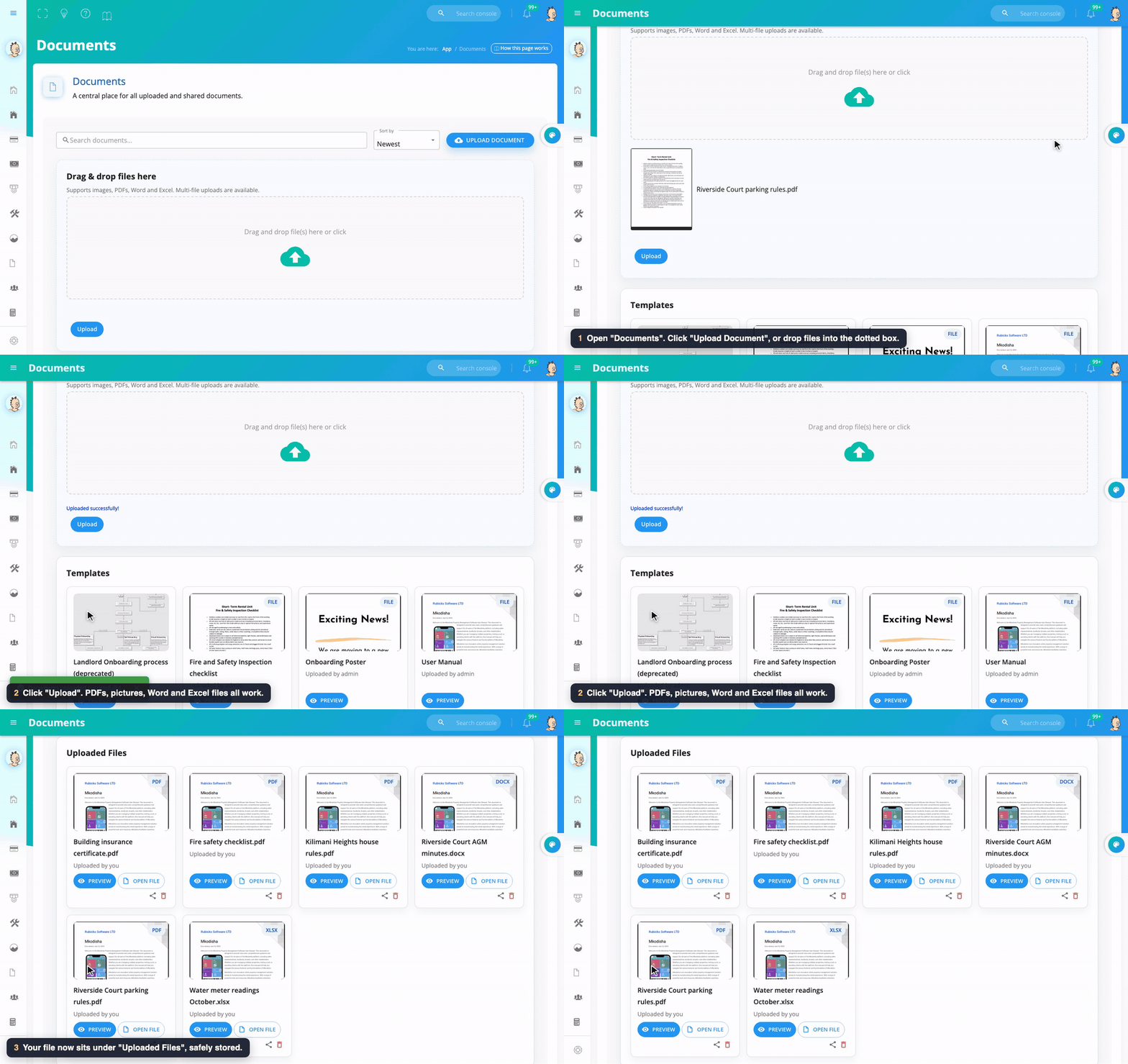
- Open Documents and click Upload Document (or drag files into the dotted box).
- Choose one or more files: PDF, JPG, PNG, BMP, Word (.doc, .docx) or Excel (.xls, .xlsx), up to 5 MB each.
- Click Upload.
Your files appear under Uploaded Files, each labelled with its type (PDF, DOCX, XLSX…).
Step 2: Share a file
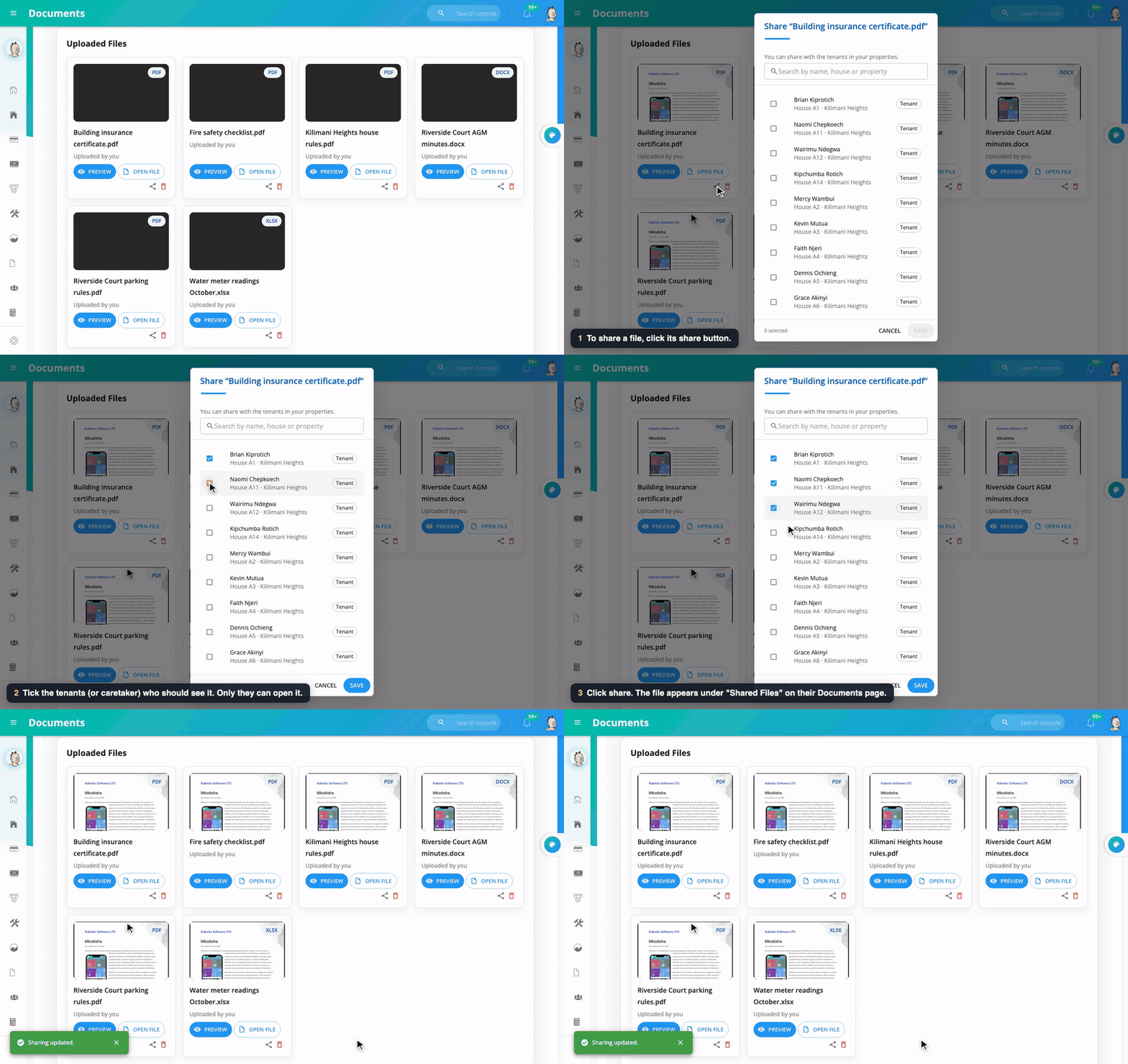
- Find the file under Uploaded Files and click its share button.
- Tick the people who should see it. You can search by name, house or property. - Landlords can share with the tenants in their buildings. - Tenants can share with their landlord and with other tenants in their building.
- Click Save. You'll see Sharing updated.
To stop sharing, open the share list again and untick the person.
Step 3: Preview or download
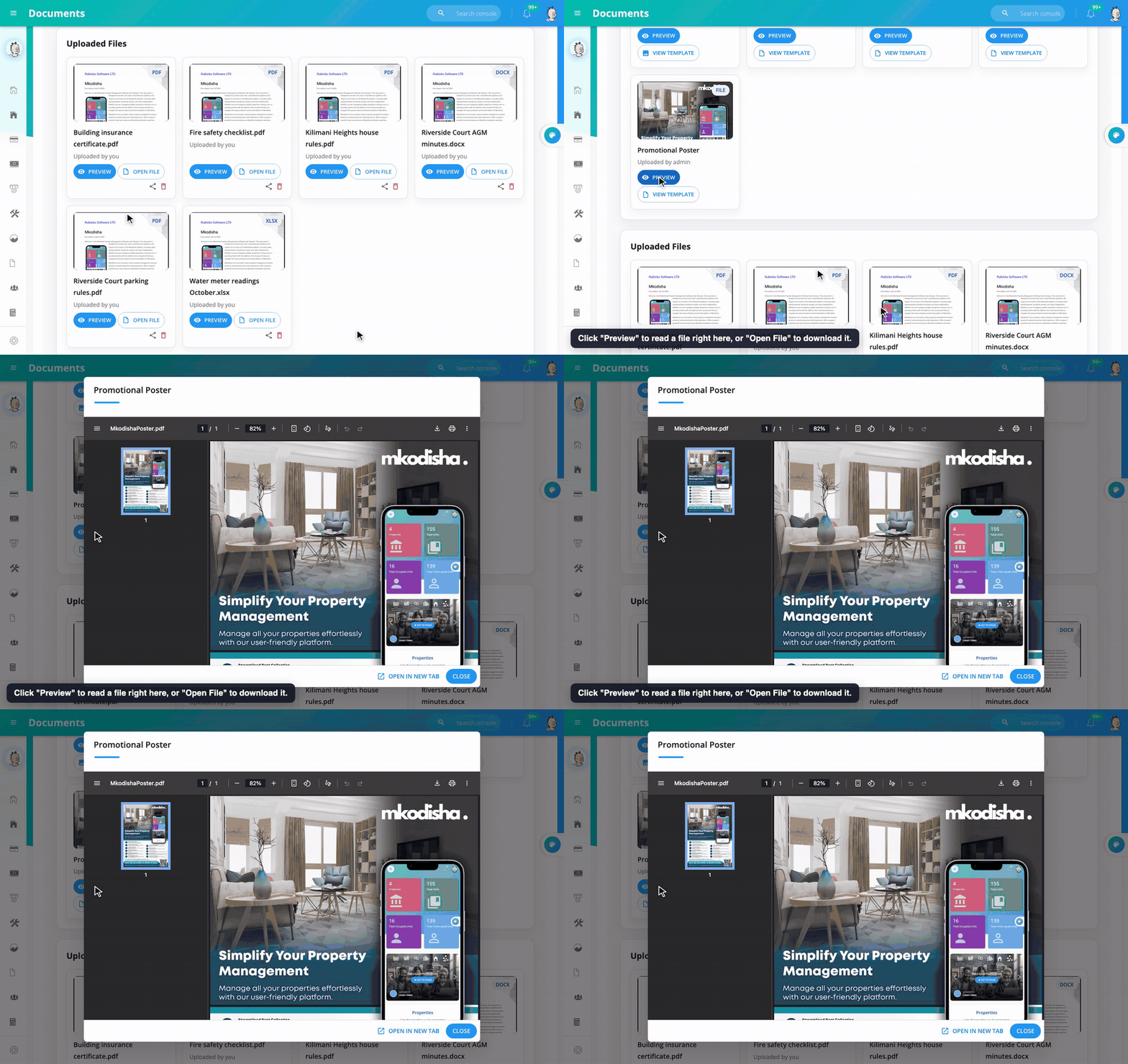
- Preview opens the file inside Mkodisha.
- Open File downloads it to your phone or computer.
- Delete (the bin) removes a file you uploaded.
What tenants see
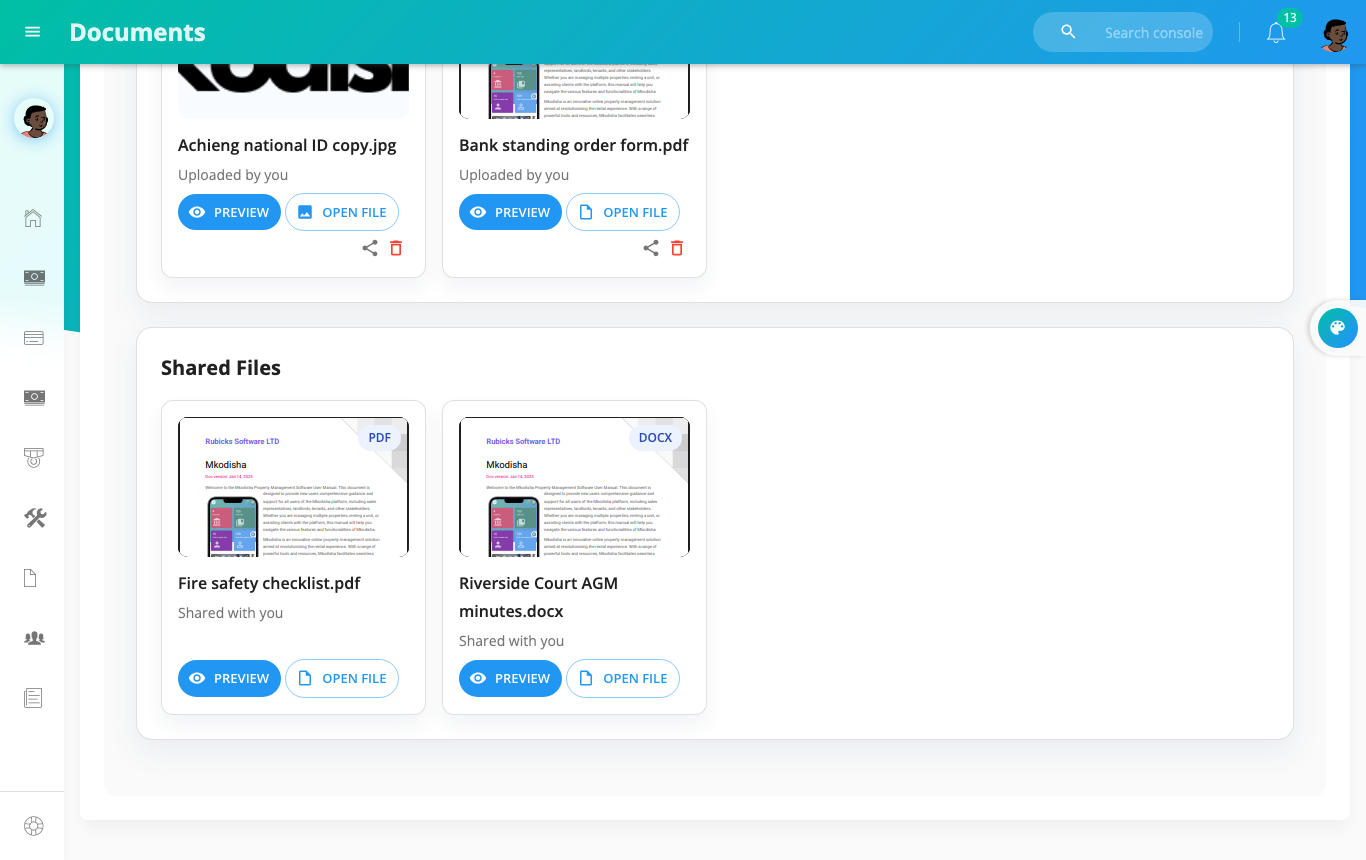
Tenants have the same Documents page. Files their landlord shared appear under Shared Files, with who shared them. Tenants can upload their own files too, like a copy of their ID or a bank standing order form, and share them with their landlord.
The templates
| Template | What it's for |
|---|---|
| Fire and Safety Inspection checklist | Checking a unit is safe before a tenant moves in |
| Onboarding Poster | A poster telling tenants their building now uses Mkodisha |
| User Manual | The full Mkodisha manual |
| Promotional Poster | Advertising Mkodisha to tenants and neighbours |
Good things to keep in Documents
- Signed contracts and house rules (contracts made in Mkodisha also live under Contracts)
- Building insurance and compliance certificates
- Meter-reading sheets for your caretaker
- Minutes of residents' meetings
- Tenant ID copies (shared only with the landlord)
- Receipts for big repairs (or attach them to an expense under Analytics)
Quick answers
Who can see my files? Only you, until you share a file. Then only the people you ticked.
What file types can I upload? PDF, JPG, PNG, BMP, Word and Excel, up to 5 MB each.
Can I upload several files at once? Yes. Select or drop several files, then click Upload.
I sent someone a download link and it stopped working. Links expire after an hour for safety. Share the file with them in Mkodisha instead, so they can open it any time.
How do I un-share a file? Open its share list and untick the person.
Words to know
| Word | Meaning |
|---|---|
| Upload | Put a file from your phone or computer into Mkodisha |
| Share | Let chosen people open your file |
| Preview | Look at a file without downloading it |
| Template | A ready-made document you can use |